



Experience premium entertainment with Xtreme HD IPTV UK. Enjoy 24,000+ live channels, a huge on-demand library, smooth streaming, Full HD quality, and regular content updates.
Setting up IPTV on Android is one of the easiest ways to watch live TV, sports, movies, and series. Whether you’re using an Android Smart TV, Android TV box, or an Android phone, the setup only takes a few minutes once you know the right steps.
This guide keeps things simple, straight to the point, and fully updated for 2026. It’s written for everyday users and works perfectly for UK viewers.
What Devices This Guide Covers
This setup works on all Android-based devices, including:
• Android Smart TVs (Sony, Philips, TCL, Hisense, etc.)
• Android TV boxes
• Nvidia Shield
• Android phones and tablets
If your device runs Android or Google TV, you’re good to go.
Why Downloader Is Needed on Android
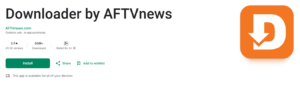
Most good IPTV apps are not available on the Google Play Store. Some get removed regularly, others are never listed at all. Because of that, the easiest and most reliable way to install IPTV apps on Android is by using the Downloader app.
Downloader lets you install apps using a simple code or link, without needing a computer.
How to Install Downloader on Android TV
Open the Google Play Store on your Android TV
Search for Downloader
Select Downloader by AFTVnews
Click Install
Wait for the app to finish installing
Once it’s installed, there’s one important setting you need to enable before using it.
Enable Developer Options on Android TV (Required)
Before installing IPTV apps with Downloader, you must enable Developer Options and allow apps from unknown sources. This step is also shown in the video above, but if you prefer written steps, follow the guide below.
Step-by-Step: Enable Developer Options on Android TV
From the home screen, go to Settings
Open Device Preferences
Select About
Scroll down to Build
Press the OK button on your remote 7 times until you see a message saying Developer Options are enabled
Go back to Device Preferences
Open Developer Options
Select Install unknown apps
Choose Downloader
Turn Allow from this source ON
Once this is done, you’re ready to install IPTV apps using Downloader.
Installing IPTV Apps on Android Phones
On Android phones and tablets, the setup is slightly different but just as easy.
You can install IPTV apps directly if they’re available, or use Downloader if they’re not.
Allow Unknown Sources on Android Phones
If you’re installing an IPTV app using Downloader or an APK file on your Android phone, you’ll need to allow installation from unknown sources. This is normal and only needs to be done once.
Step-by-Step: Enable Unknown Sources on Android Phone
Open Settings on your Android phone
Go to Security or Privacy (this varies by phone)
Tap Install unknown apps
Select Downloader or the browser you’re using
Turn Allow from this source ON
If you don’t see these exact options, use the search bar in Settings and type unknown apps.
Once enabled, go back to Downloader, install the IPTV app, and continue with setup.
Best IPTV Apps for Android in 2026
Below are the most reliable IPTV apps right now for Android devices. All of them support Xtream Codes API login.
IBO Player Pro
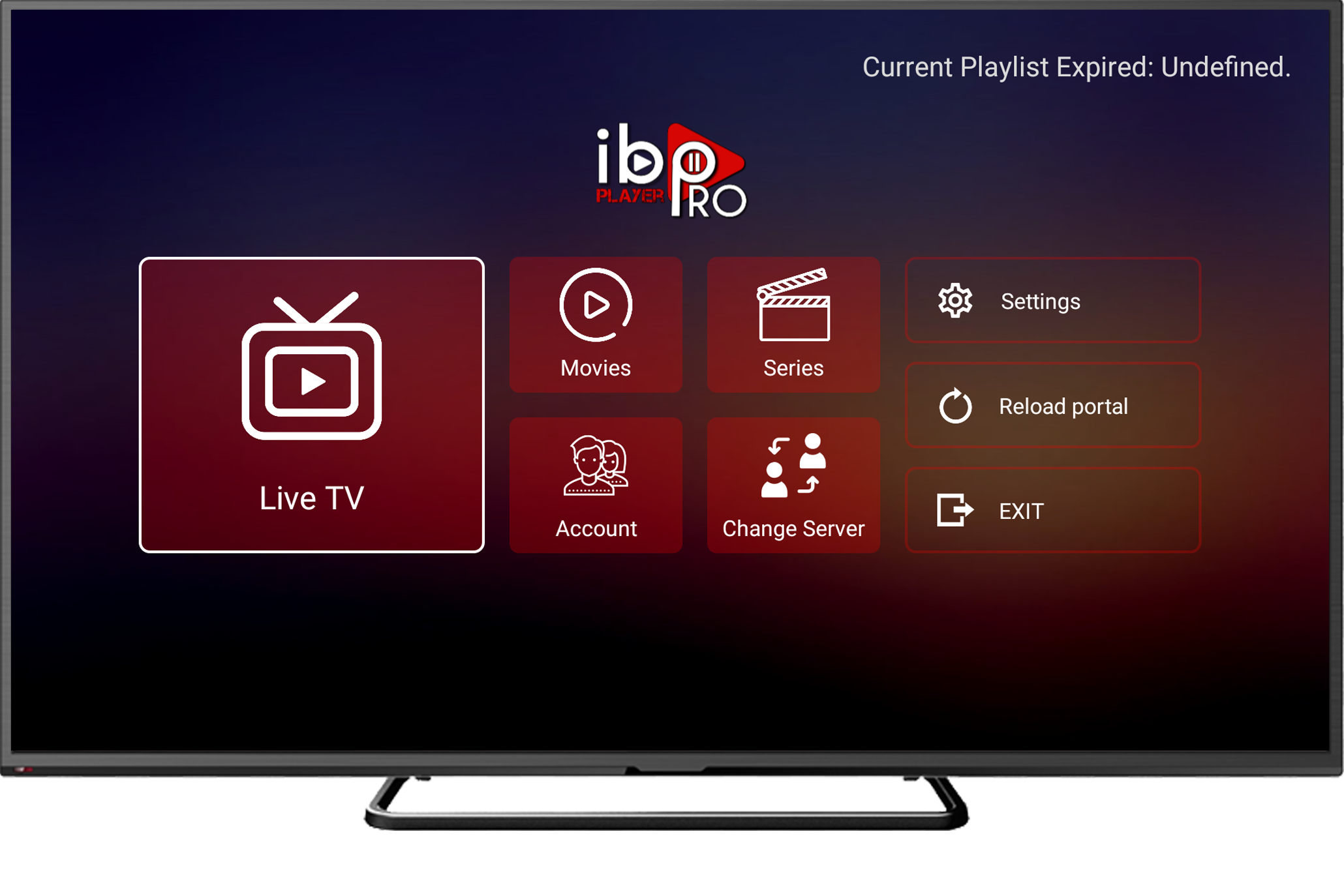
Direct APK Link: https://fhdtv.uk/ibopro.apk
Downloader Code: 1046124
Paid app
7-day free trial
Lifetime activation per device
Requires setup via their website using an M3U link
Hot Player
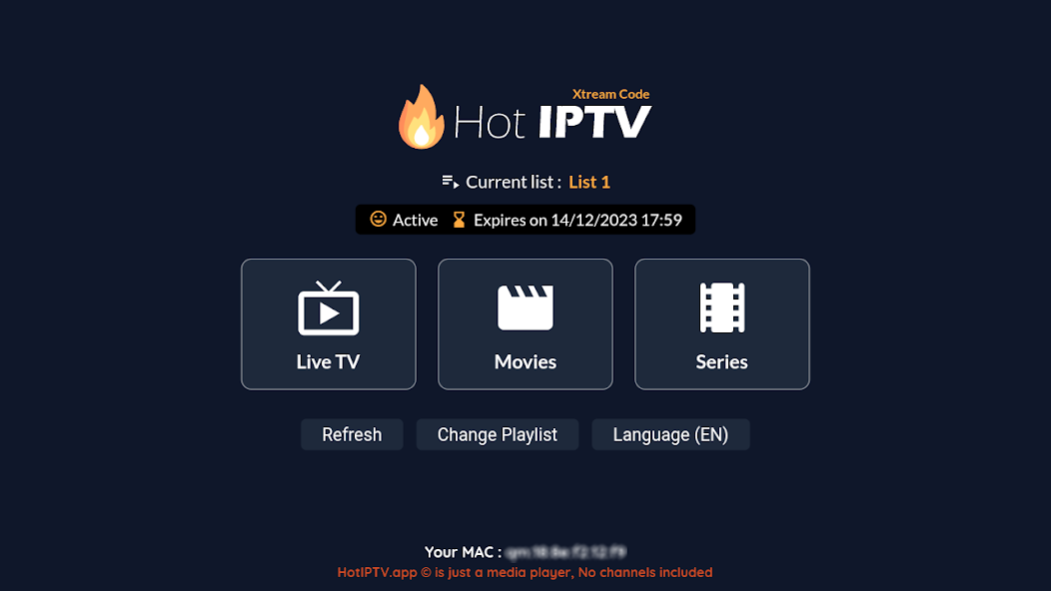
Direct APK Link:
Downloader Code: 395800
Paid app
One-time or yearly activation
Requires setup via their website using an M3U link
How to Log In to Your IPTV App
Once you’ve installed any of the apps above, the setup is very straightforward.
In most cases, open the app and choose Login with Xtream Codes API.

You’ll then enter the IPTV details we sent you.
Any Name: This can be anything you like
Username: Use the username we provided
Password: Use the password we provided
URL: Enter the server link included in your details
Confirm the login and wait a few seconds while your channels load.
Apps That Use Website Activation
A couple of apps work slightly differently.
Hot IPTV and IBO Player require you to visit their official website first and upload your M3U link there instead of entering details directly on the device.
Once that’s done, reopen or refresh the app and your content will load.
All other apps allow direct login on the device.
Final Thoughts
Android is one of the best platforms for IPTV. It works on TVs, boxes, and phones, and the setup process is quick once everything is enabled.
Install Downloader, allow unknown sources, choose a good IPTV app, enter your details, and you’re ready to watch.
This setup is simple, reliable, and ideal for everyday IPTV use in the UK.