


Experience premium entertainment with Xtreme HD IPTV UK. Enjoy 24,000+ live channels, a huge on-demand library, smooth streaming, Full HD quality, and regular content updates.
Setting up IPTV on a Smart TV depends on one key thing: whether your TV has Google Play or not.
Because of this, Smart TVs fall into two categories, and each one has a slightly different setup method.
This guide starts with non-Android Smart TVs (Samsung, LG, etc.), then covers Android / Google TV Smart TVs. Everything is explained clearly, step by step. Fully updated for 2026.
Smart TVs WITHOUT Google Play (Samsung, LG, and similar)
If your Smart TV does not have Google Play, it will use its own app store, such as the Samsung Store or LG Content Store. These TVs do not support Downloader, so IPTV apps must be installed directly from the TV’s app store.
IPTV Apps Commonly Available on TV App Stores
Depending on your TV brand and region, you’ll usually find one or more of these apps:
• Hot IPTV
• IBO Player Pro
• Bob Player
If none of those appear in your store, try searching for these older but widely supported apps:
• SmartOne IPTV
• Nanomid
• IBO Player Classic
Most IPTV apps on non-Android Smart TVs are paid apps, usually with a one-time or yearly activation fee.
How IPTV Setup Works on These Smart TVs (Hot IPTV Example)
On non-Android Smart TVs, Hot IPTV is one of the most commonly used apps, and its setup process is the same structure used by all similar Smart TV IPTV apps.
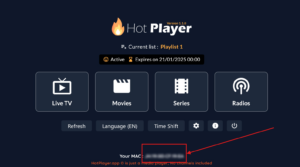
When you open Hot IPTV on your TV, a MAC address will be displayed on the screen. This MAC address is unique to your TV and is used to link your IPTV playlist.
To complete the setup:
Open Hot IPTV on your Smart TV and note the MAC address
Go to the official Hot IPTV website at https://hotplayer.app

Enter the MAC address shown on your TV
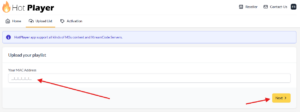
Paste the M3U link sent to you by your IPTV provider
Save the playlist
Once done, restart or refresh the app on your TV. The app will automatically detect the playlist and start working.
This same setup structure is used by IBO Player Pro, Bob Player, SmartOne IPTV, Nanomid, and other Smart TV IPTV apps. The steps are always the same, only the website changes.
Important Note About IPTV Smarters on Smart TVs
IPTV Smarters is sometimes available as a free option on Smart TVs, but it often causes issues. On many Smart TVs, it barely works or stops working completely due to limited DNS links, which are commonly blocked by UK internet providers.
You can try it, but for a smoother and more reliable experience, paid apps like Hot IPTV or IBO Player Pro are strongly recommended.
Android Smart TVs (Google Play TVs)
If your Smart TV runs Android TV or Google TV, the setup is more flexible and allows you to install a wider range of IPTV apps.
Step 1: Install Downloader on Android Smart TV
From the TV home screen, open the Google Play Store
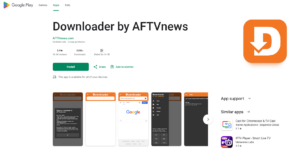
Search for Downloader
Select Downloader by AFTVnews
Click Install and wait for it to finish
Once installed, return to the home screen.
Step 2: Enable Developer Options (Required)
Before installing IPTV apps, you must allow apps from unknown sources.
Go to Settings
Open Device Preferences
Select About
Scroll down to Build
Press the OK button on your remote 7 times until you see a message saying Developer Options are enabled
Go back to Device Preferences
Open Developer Options
Select Install unknown apps
Choose Downloader
Turn Allow from this source ON
This only needs to be done once.
Step 3: Install IPTV Apps Using Downloader Codes
Open Downloader, enter one of the codes below, and install the app when prompted.
Downloader App Codes for Android Smart TVs
• HOT IPTV PLAYER
Downloader Code: 395800
• IBO Player Classic
Downloader Code: 3253817
• IBO Player New Version
Downloader Code: 1046124
After installation, you can delete the APK file inside Downloader to keep your TV storage clean.
Logging In on Android Smart TV IPTV Apps
Most Android IPTV apps allow direct login.
Open the IPTV app
Choose Login with Xtream Codes API
Enter the details sent to you by your IPTV provider

Any Name: Can be anything
Username: Provided to you
Password: Provided to you
URL: Server link provided
Confirm the login and wait a few seconds for channels to load.
Apps That Use Website Activation on Android TVs
Some apps, such as IBO Player and Hot IPTV, do not use direct login.
For these apps:
Open the app and note the MAC address
Visit the app’s official website
Enter the MAC address
Paste your M3U link
Save and reload the app
Once refreshed, the app will start working automatically.
Final Thoughts
Smart TV IPTV setup is simple once you know which type of TV you have.
If your TV uses its own app store, install a supported IPTV app and upload your M3U link using the MAC address method.
If your TV runs Android or Google TV, use Downloader and install IPTV apps using the codes above.
Once set up, IPTV runs smoothly and gives you a proper big-screen experience with no extra devices needed.